DAW Integration
Veska exposes a virtual ASIO driver that your DAW connects to. The Console owns the real hardware; the DAW talks to the Console over low-latency shared memory.
Connect your DAW
- Make sure Veska Console is running with its hardware device open (status light green).
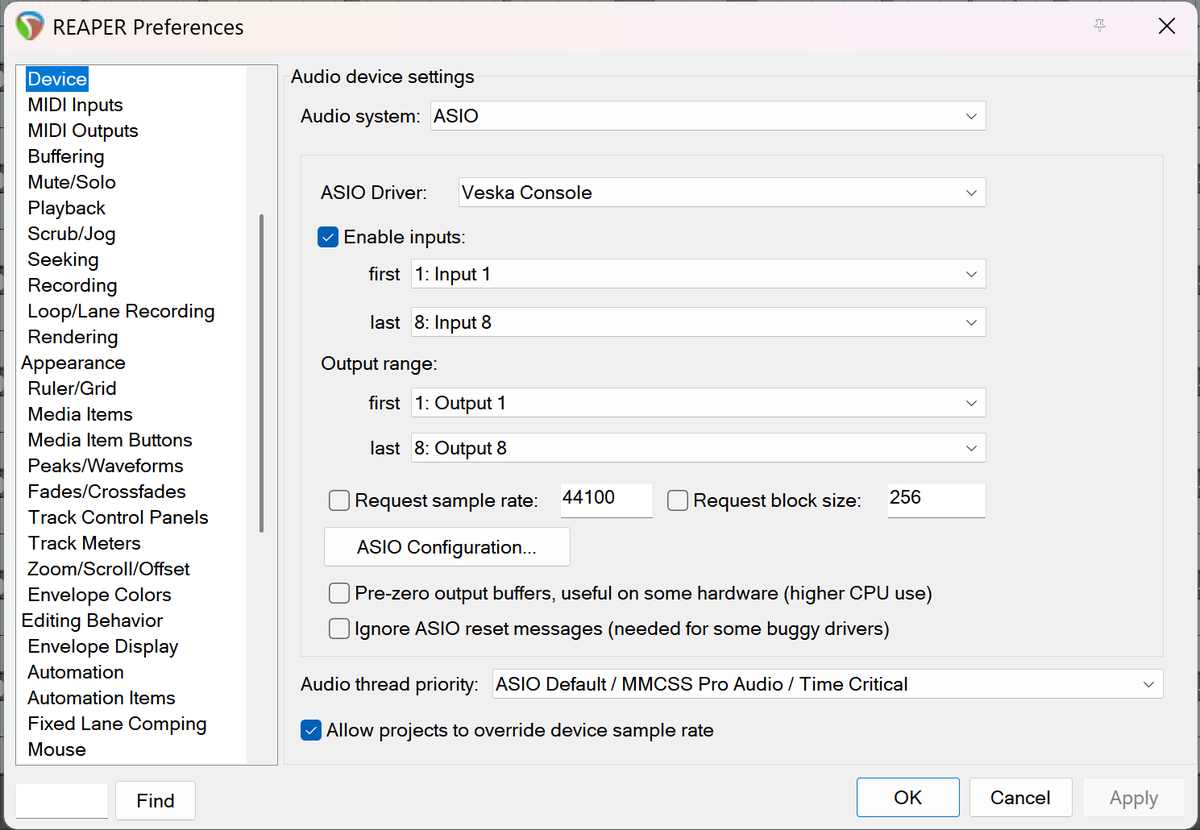
- In your DAW's audio settings, choose the ASIO driver named "Veska Console".
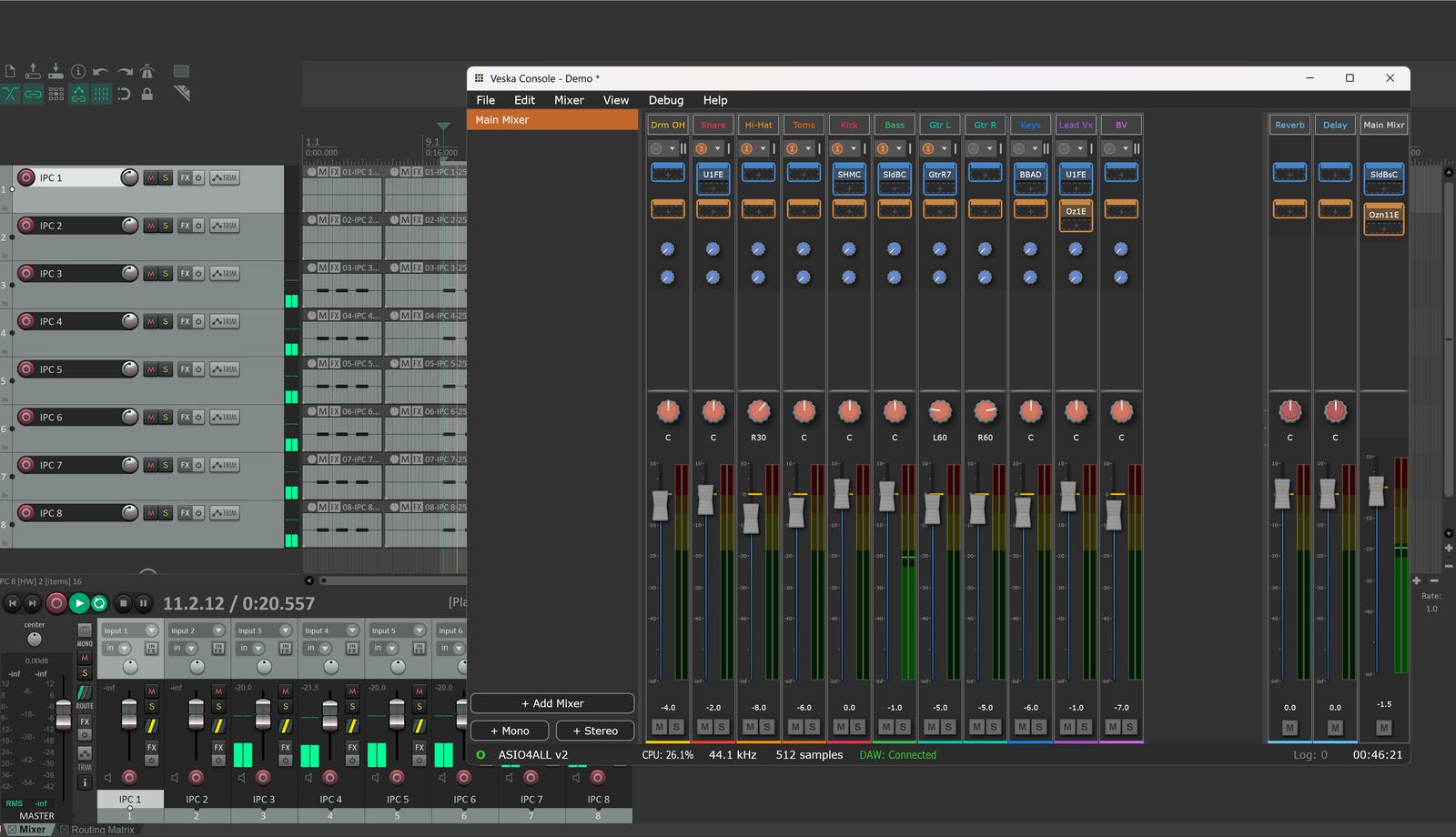
- The Console's status bar should change from DAW: Waiting to DAW: Connected.
Sample rate and buffer size
- Set the sample rate the same in the Console and the DAW.
- The Console owns the hardware buffer size; keep the DAW's ASIO buffer consistent. If you hear dropouts (X-runs on the status bar), increase the buffer in Preferences > Audio.
Getting DAW audio into a mixer
DAW outputs arrive as DAW returns and can be picked in any channel's input selector (or wired in the Routing Matrix). See Routing > Example 2.
Host-specific notes
- REAPER: Options > Preferences > Audio > Device, ASIO driver = Veska Console.
- Ableton Live: Preferences > Audio, Driver Type = ASIO, Audio Device = Veska Console.
- Other ASIO hosts: pick the same driver from their ASIO device list.
Quitting safely
If you quit the Console while a DAW is still using the driver, you'll be warned first, closing the Console interrupts the DAW's audio. Stop or reconfigure the DAW before closing the Console.
For connection problems, see Troubleshooting.