Troubleshooting
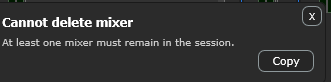
Most issues fall into a few buckets. The Console reports problems as non-modal toasts; you can review past messages in View > Notification Log….
The driver doesn't appear in my DAW
- Confirm Veska Console is installed via the MSI (which registers the driver),
or that you ran
regsvr32 Veska_Driver.dllfrom an Administrator prompt for a local build. - The DAW lists it as "Veska Console" in the ASIO device list - make sure the DAW is set to ASIO, not WASAPI/DirectSound.
- Restart the DAW after installing so it re-scans ASIO drivers.
- 64-bit only: a 32-bit host won't see the driver.
The DAW won't load or start Veska
- Veska Console must be running with an audio device open (green status light) before your DAW can load the driver: the driver bridges to the Console's audio engine. If the engine isn't running, the Console dims and shows "Audio engine not running" with an Open audio device button. Open a device there first, then select the driver in your DAW.
No sound
- Check the channel isn't muted and its fader is up.
- Check another channel isn't soloed (which silences the rest).
- Verify the channel's input selector points at the right source, and the main bus fader and mute.
- Confirm the hardware device is running (green status light) and routed to the correct hardware output.
The audio device won't open
- Another application may be holding the interface in exclusive mode: close it and try again.
- Re-select the device in Preferences > Audio; you'll get an error toast with details (use Copy to grab the message).
- Make sure the interface's own ASIO driver is installed and the device is connected.
Dropouts / glitches (X-runs)
- The X-runs indicator appears in the status bar when buffers under/overrun; click it to reset the count.
- Increase the buffer size in Preferences > Audio.
- Close other CPU-heavy apps; check CPU % in the status bar.
The DAW status stays on "Waiting"
- Waiting means the driver is ready but no DAW is connected. Select Veska Console in your DAW and start audio, it should change to Connected.
- Make sure the Console is running before the DAW opens the driver.
- Match the sample rate between Console and DAW.
A plugin won't load
- Plugins are scanned by a separate helper process, so a failure shows as an error toast rather than crashing the Console.
- Confirm the plugin is VST3 and 64-bit.
- Re-scan from Preferences if a newly installed plugin isn't listed.
Where are the logs?
The Console writes Veska_Console_Log.txt (and the driver a *_Log.txt) in its
working directory, useful when reporting an issue.