Routing
The model
Audio flows through three kinds of source into your channels, and out via the main bus:
Hardware inputs
DAW outputs
Other mixer buses
→
Channel
→
Main bus
→
Hardware output
Every channel has an input selector that chooses one of:
- Hardware input: a physical input on your interface.
- DAW return: audio your DAW sends through the Veska Console.
- Mixer bus: the main bus of another mixer (for sub-mixing).
The mixer sums its channels to its main bus, which is then sent on to your hardware output (and is itself selectable as a source in other mixers).
Two ways to route
- Per-channel input selector: click a channel's input selector and pick a source. Quickest for one channel.
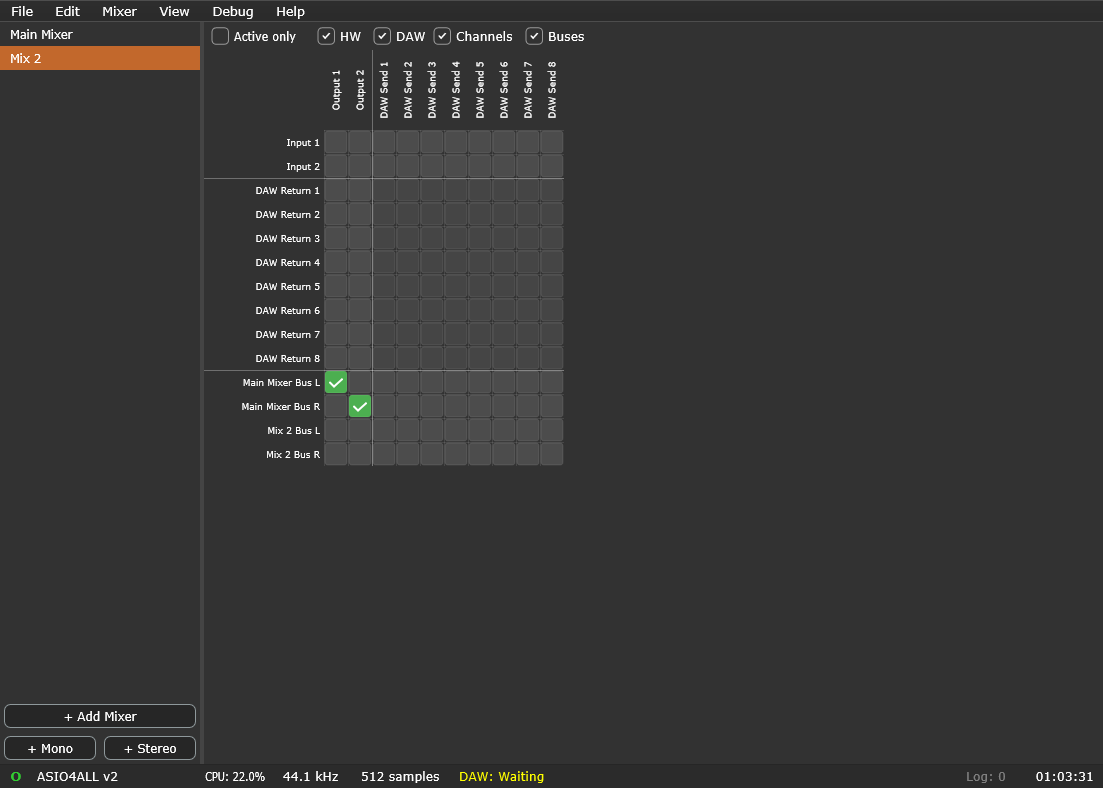
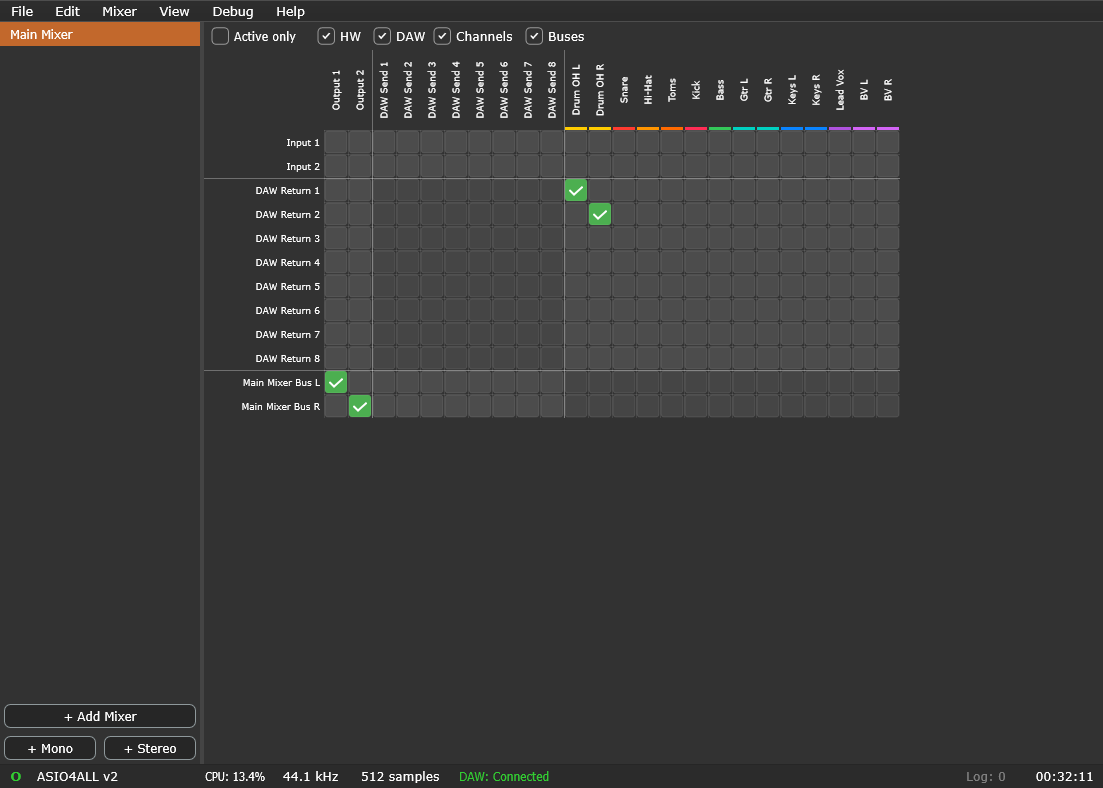
- Routing Matrix view (
Ctrl+2): a grid of sources × destinations; click a cell to connect. Best for seeing and editing everything at once.
Example 1: Mix hardware inputs to your speakers
- Add channels and set each one's input selector to a hardware input (e.g. Mic 1, Mic 2).
- Balance with the faders and pan.
- The main bus feeds your hardware output: raise the main fader to monitor.
Example 2: Bring DAW audio in
- In your DAW, select Veska Console as the ASIO device and play audio (the status bar shows DAW: Connected).
- On a channel, set the input selector to the matching DAW return.
- The DAW's audio now flows through the channel and onto the main bus alongside your hardware inputs.
See DAW Integration for the DAW side.
Example 3: A headphone / cue mix with aux sends
- Add an aux channel for the headphone mix.
- On each source channel, bring up its aux send to that aux channel (set pre-fader if you want the cue independent of the main fader).
- Route the aux channel's output to the hardware output feeding the headphones.
Example 4: Sub-mixing with multiple mixers
- Create a second mixer for a group (e.g. drums).
- In your main mixer, add a channel and set its input to the drum mixer's bus.
- Now the whole drum sub-mix is a single fader in your main mixer.